Biospecimen Data Journey
This guide covers the biospecimens journey in Lasso: collecting a sample during a participant visit, storing it, shipping it to Mayo and tracking how that data flows on to accessioning and sequencing partners.
At A Glance#
Mayo ships pre-barcoded vials and FedEx labels to the site.
Site staff scan biospecimen vials into Lasso during participant visits and record collection and cold storage timestamps.
Site staff ship specimens to Mayo and track outbound shipment information.
Mayo accessions and processes samples, returning accessioning and QC data to Lasso.
Mayo creates child containers and ships processed samples to Broad.
Broad retrieves participant and specimen metadata from Lasso through the API for sequencing workflows.
Workflow Safeguards#
- Full Chain of Custody: Parent specimens, child containers, shipments, and sequencing data stay linked end to end.
- Scan-Based Identification: Barcode scans connect participant visits, biospecimens, and shipment records automatically.
- No Manual Entry Errors: You skip transcription and duplicate data entry.
- Real-Time Visibility: Track collection, storage details, and participant status instantly.
- Audit-Ready by Design: Timestamped actions, enforced completeness, and no PII in free text.
Collection Workflow#
Biospecimen collection begins the same as any in-person visit: open the participant's visit, work through Pre-Visit, In-Person and Post-Visit sections.
STEP 1 - Open the Site Dashboard and Launch the Visit#
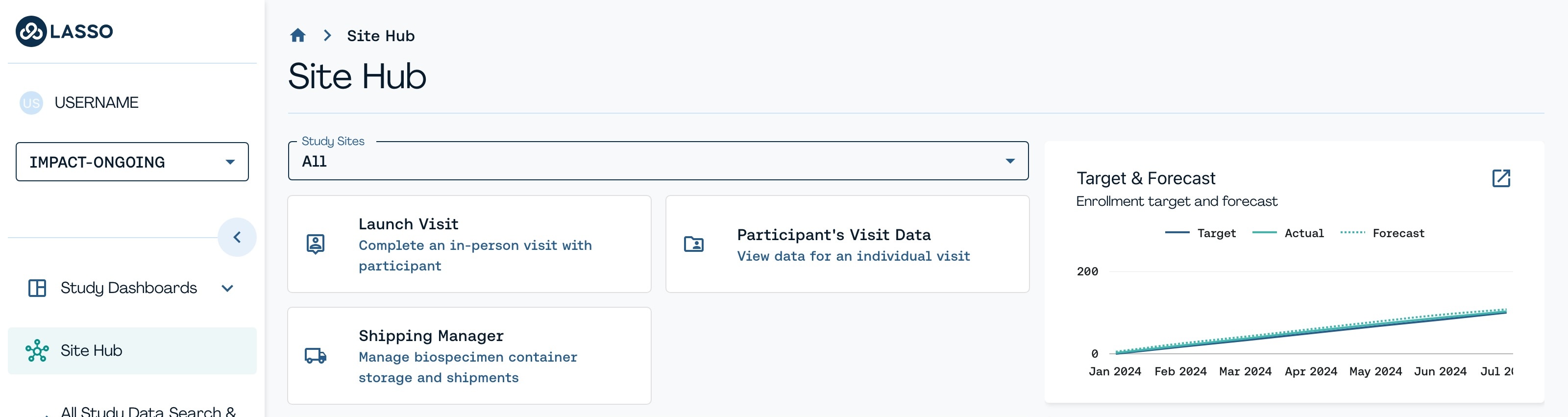
The Site Hub dashboard is your central workspace. From this dashboard, click the Launch Visit tile to start the participant's in-person visit.
STEP 2 - Scan the Participant's QR Code#
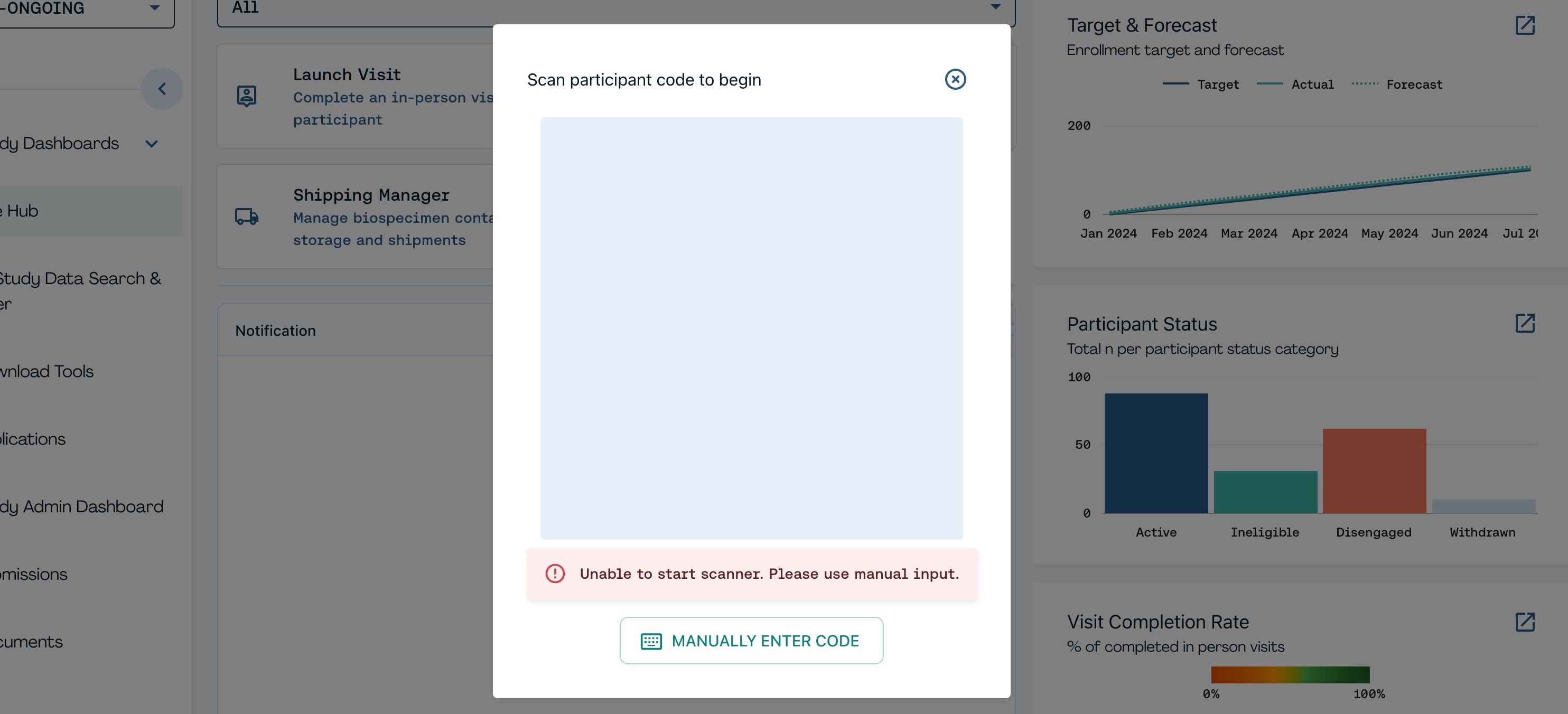
Scan the unique QR code created when the visit was scheduled. Use Manually Enter Code if scanner isn't available.
STEP 3 - Confirm Visit Details#
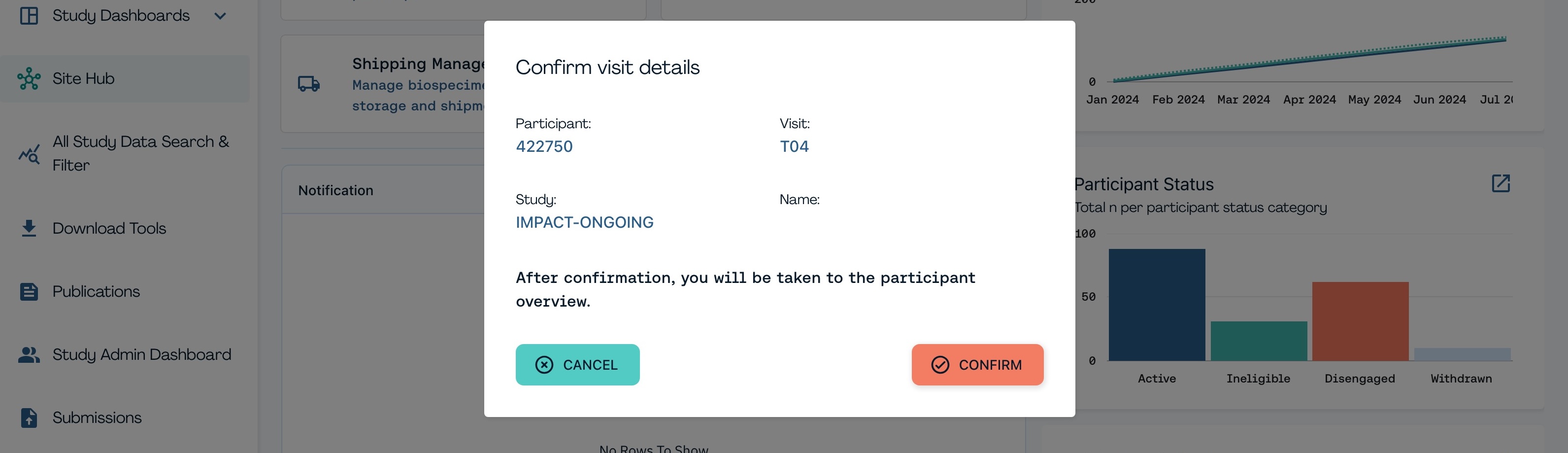
Check the Participant ID, Visit, Study and Name against the person in front of you before you continue.
STEP 4 - Access the Collection Form#
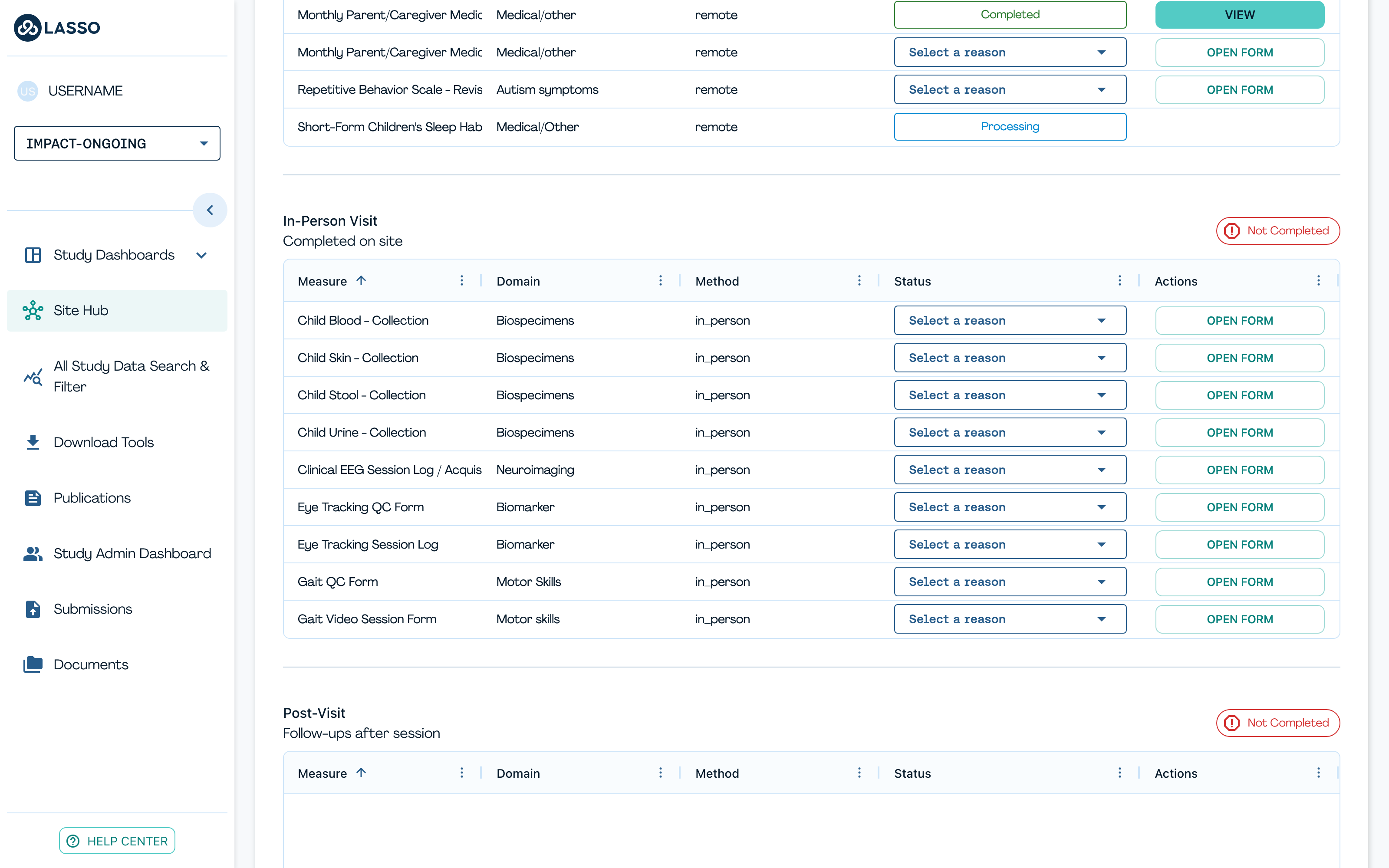
On the Participant Visit page, find the sample type under In-Person Visit and click Open Form to record its collection.
STEP 5 - Enter Collection Data#
Complete the required fields for each sample: details, serial number, reason if not collected, notes and collection time.
Leave a collection time blank, and Lasso marks that sample as not collected.
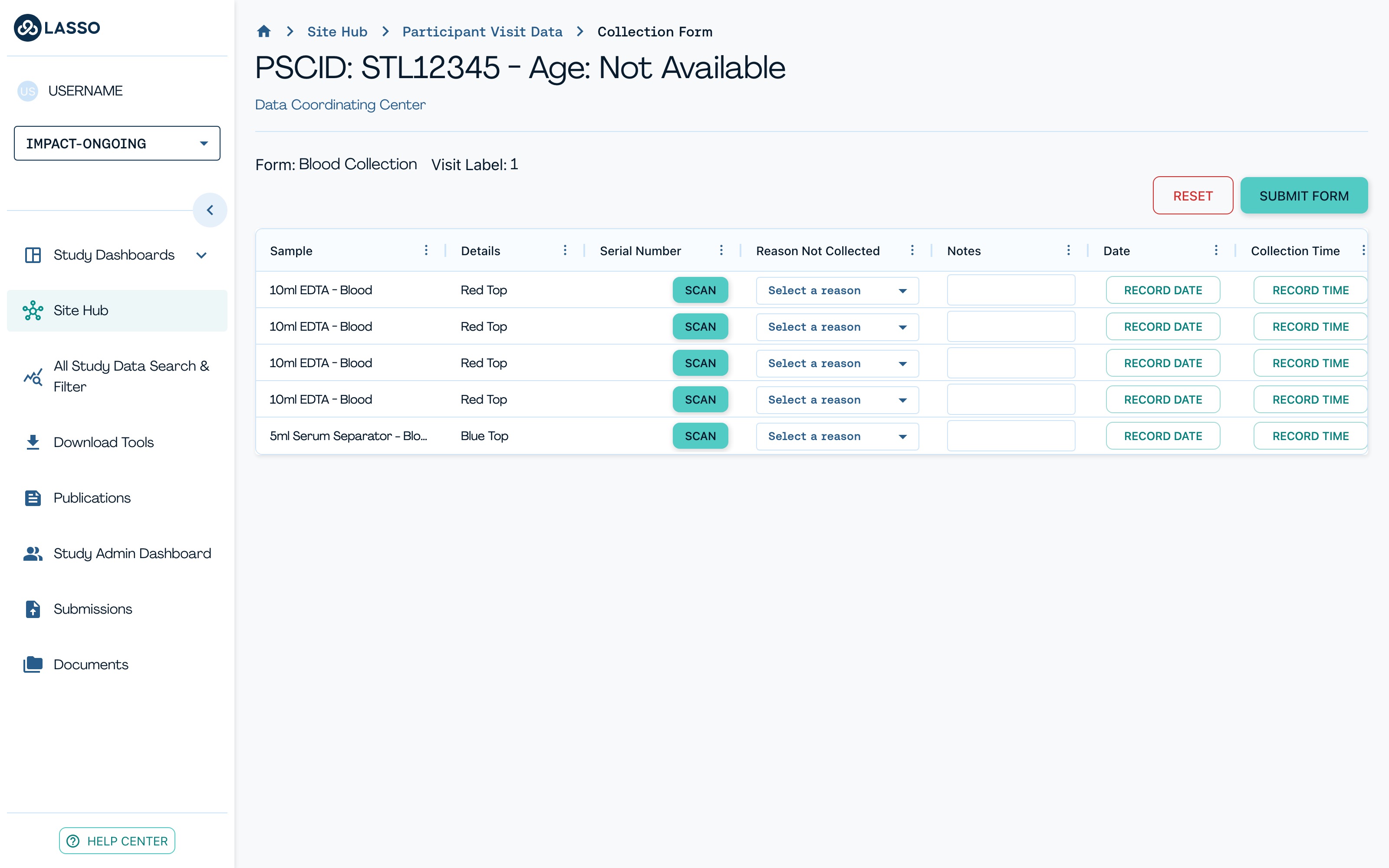
STEP 6 - Review the Collection Summary#
In Collection Summary:
- Samples Collected: review details and add optional notes.
- Samples Not Collected: you must select a reason per sample, for example participant refused, sample not required or technical issue.
Rules
- Do not enter PII in free-text notes.
- Click Submit Form in the top-right corner to complete the Collection stage.
Storage#
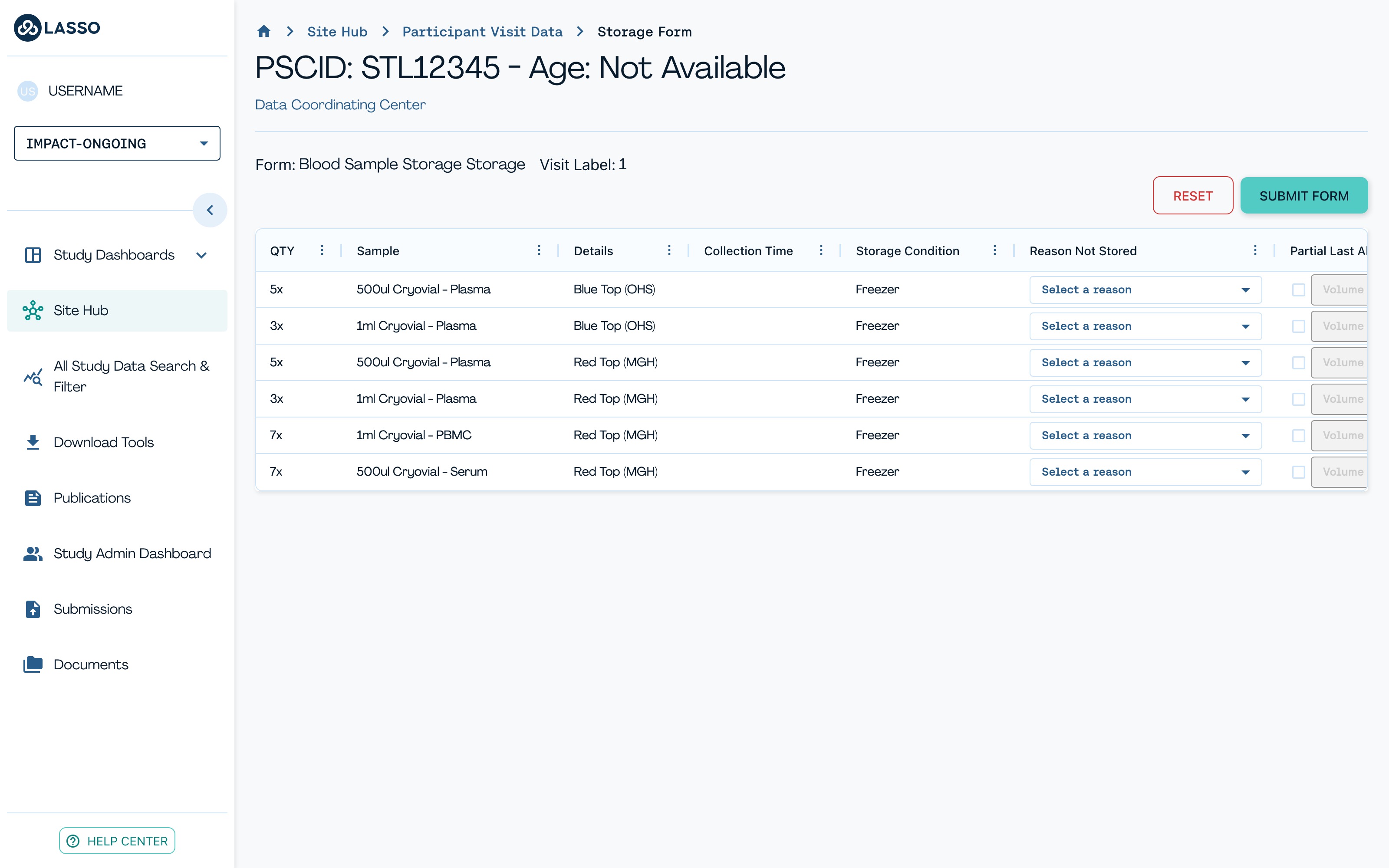
The Storage stage captures when samples went into cold storage and any partial or empty samples. You can record storage times individually or for multiple samples at once, supply reasons for items that were never stored and log partial or empty samples along with the remaining volume. Saving the Storage Summary returns you to the In-Person Visit view.
Shipping Manager & Manifests#
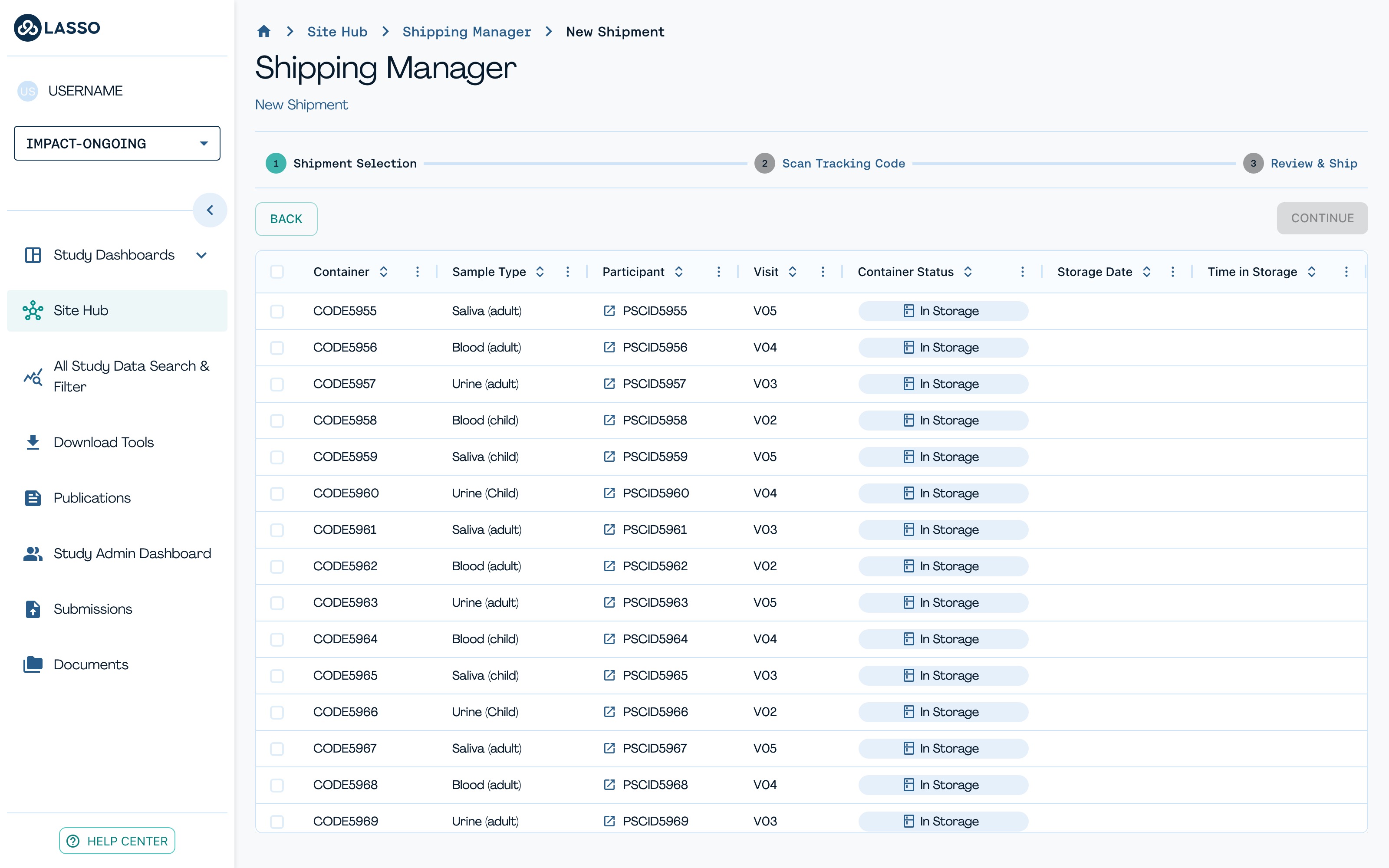
From the Shipping Manager you can:
- Select participants and samples to ship.
- Deselect items not ready to go.
- Click New Shipment, then:
- Scan or enter the tracking code.
- Set the shipping date.
- Confirm and print the shipping manifest.
Other options:
- Search by participant ID or tracking code.
- View and reprint manifests from Actions (…), then View Shipping Manifests.
Quickstart Guide#
End-to-end path for a single biospecimen:
- Open the Site Dashboard, Launch Visit.
- Scan the participant's QR code and confirm visit details.
- Open the Collection Form for each sample type and enter collection data.
- Review the Collection Summary. Add a reason for any sample not collected, then submit.
- Record storage times and any partial or empty samples in the Storage form.
- In Shipping Manager, select samples, create a new shipment and confirm the manifest.
Where the data goes next:
- Mayo accessions and processes the samples and returns QC data to Lasso.
- Mayo creates child containers and ships processed samples to Broad for sequencing.
- Broad retrieves participant and specimen metadata from Lasso through the API, proceeds with sequencing and returns data to Lasso.